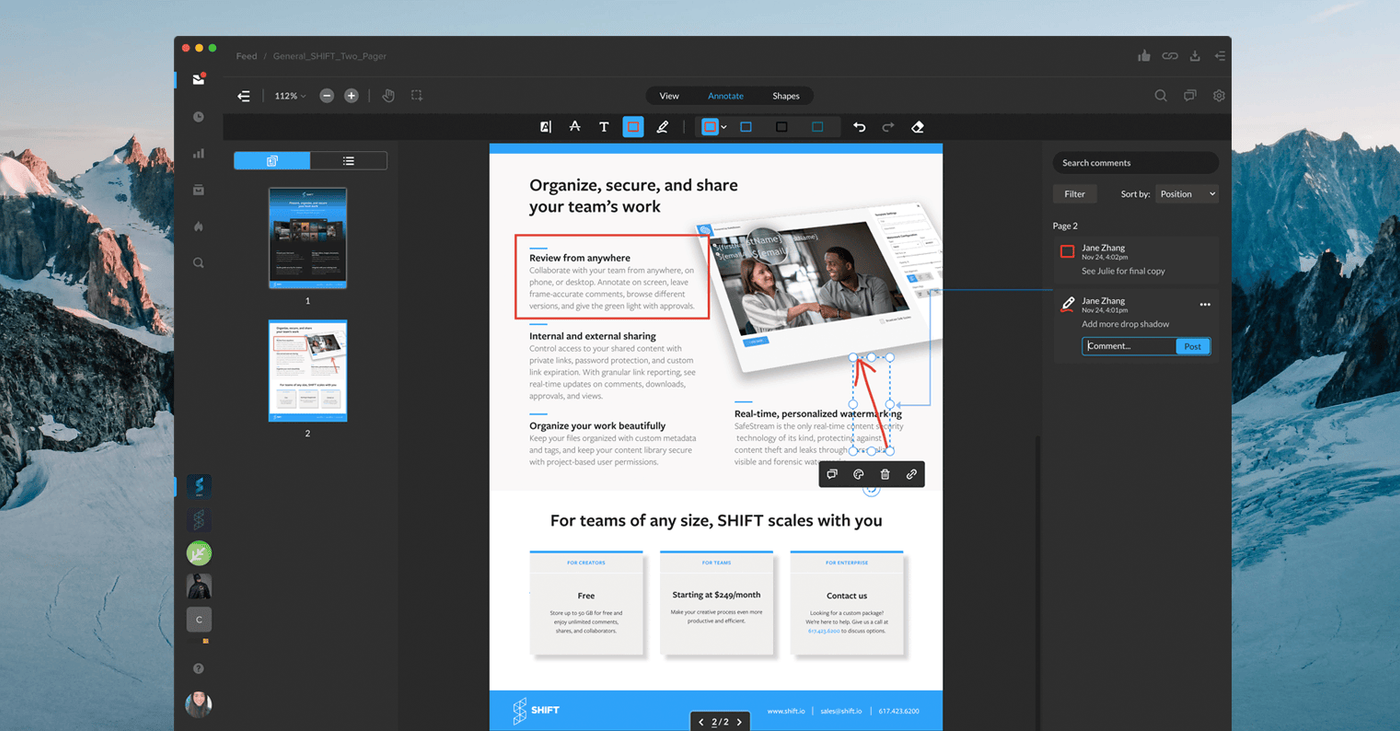
When working on a creative project, your team needs to collaborate on all kinds of files, not only video. That’s why we’ve expanded review and approval functionality in MediaSilo to include comments, drawings, and text markup on image and document files. Your team can now collaborate on items like branding kits, contracts, video scripts, photography, digital marketing assets, and more. Our new review features support a variety of file types, including PDFs, Word documents, PowerPoints, and image files like JPG, PNG, and SVG.
View Mode vs. Review Mode
When you open a review link with documents and images, you’ll now see three viewing modes at the top of the file. “View” gives you a focused view-only experience, “Annotate” is where you’ll find text, boxes, and drawing options, and “Shapes” gives you more visual commenting options.
Did you know?
Invite recipients to leave comments on your own documents, images, and videos by selecting assets in your MediaSilo Projects and sharing them as a Review Link. Video review includes its own specialized set of features, including time-coded comments and markup. Learn more in our Sharing support article .
Image Review
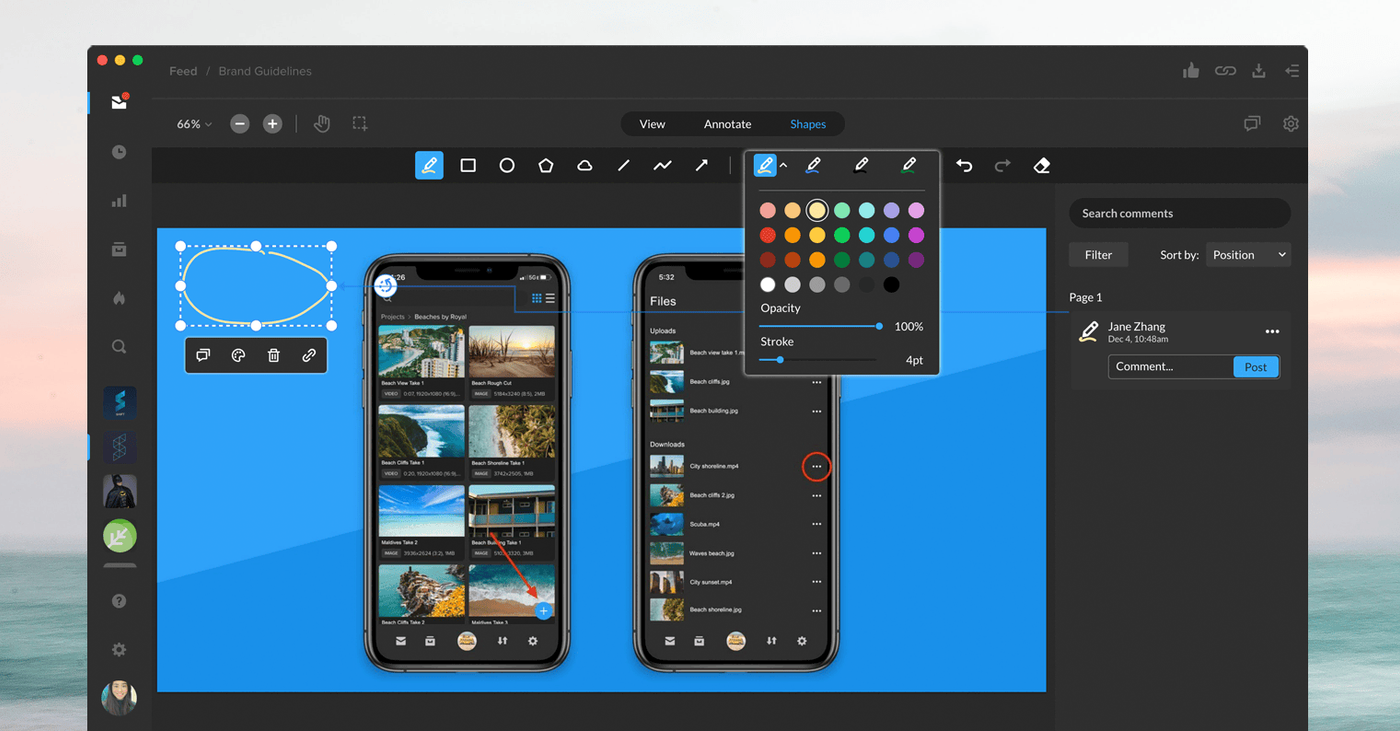
On an image file, you can give detailed and visual feedback with any of the text, drawing, and shape tools. Format the size and color of text comments, and annotate a shape or drawing with a comment to it. You can always undo and redo your actions, or use the eraser tool to remove markings. As the link sender, you’ll get email notifications when comments are left.
Document Review
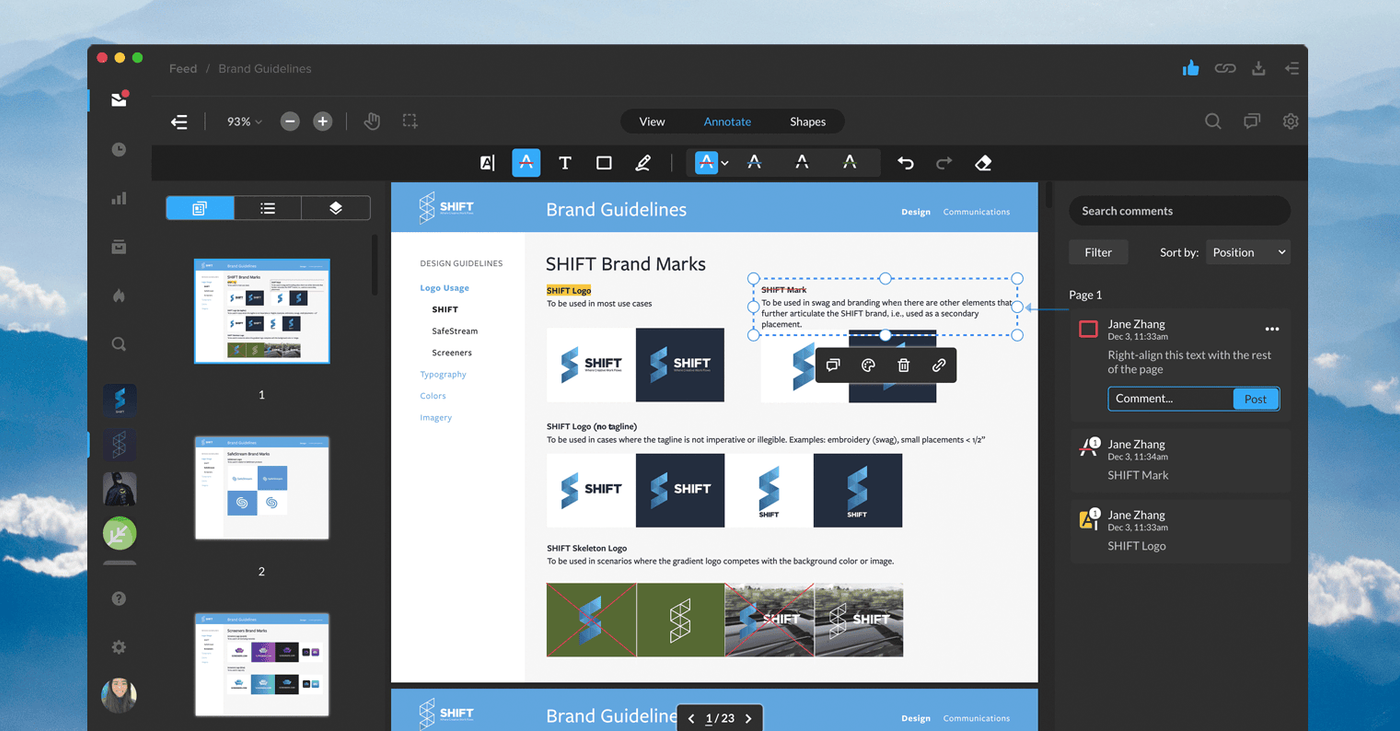
In a document file, you'll have the same feedback options, plus the ability to highlight and strike out text. For multi-page documents, open the left-side drawer to preview and navigate to different pages, just like in a PDF viewer. You can also use the search bar in the top-right to find specific words in the document. Once you’re ready to approve a file, hit the thumbs-up icon in the top-right corner of the page. This will display a checkmark on your avatar and the file you approved.

Get Started
Ready to try these features? Simply send a link containing images and/or documents with the Request Feedback option toggled on, and your team can start reviewing today. Are you new to MediaSilo? Request a free 14-day trial to level up your remote collaboration workflows.